Refine basics
Refine modifies an image you’ve already generated: redraw the whole image, inpaint, fix faces, upscale, outpaint and more. Every result is saved as a new version of the original; the original is never overwritten.
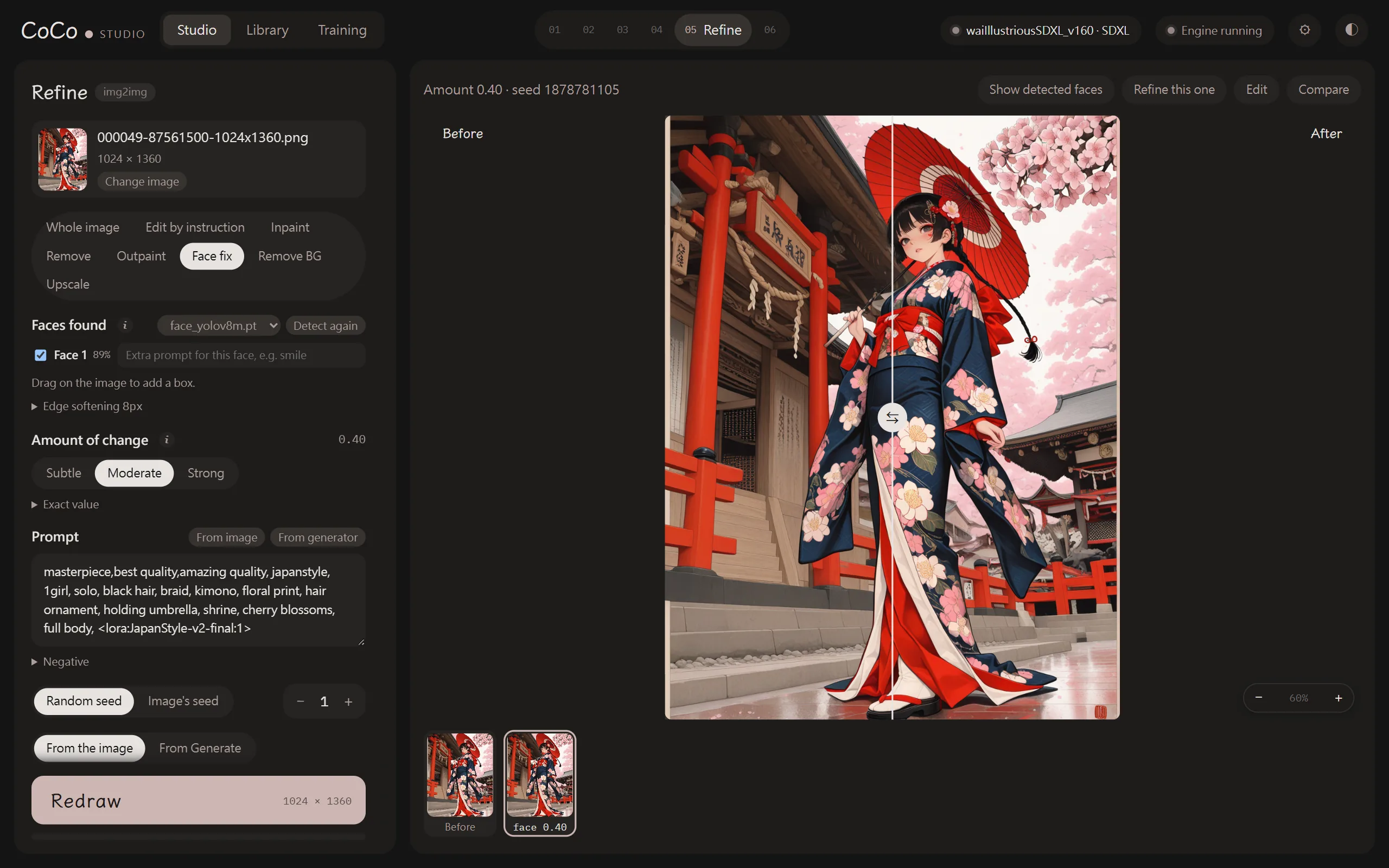
Choosing an image
Section titled “Choosing an image”- In the library or the image viewer, press “Refine” to bring the image here.
- On the Refine page, press “Change image” to pick another image from the library directly.
- Select several images in the library and press “Batch refine” to fix faces, upscale or remove backgrounds in one go (see the last section).
Refine modes
Section titled “Refine modes”| Mode | Description |
|---|---|
| Whole image | Keeps the composition and redraws the whole image (img2img) |
| Edit by instruction | Describe the change in one sentence; see Edit by instruction |
| Inpaint | Redraws only the painted area; everything else stays exactly the same. See Inpainting |
| Remove | Paint an object to remove; the surroundings fill it in. See Inpainting |
| Outpaint | Extends the image outwards; see Outpainting |
| Face fix | Finds faces and redraws them one by one; see Face fix |
| Remove BG | Makes the background transparent; see Background removal |
| Upscale | Enlarges to a higher resolution, optionally adding detail; see Upscaling |
Except for Upscale and Outpaint, the result has the same size as the original.
Amount of change
Section titled “Amount of change”“Amount of change” decides how much changes, in three levels:
| Level | Effect for Whole image |
|---|---|
| Subtle | Keeps the composition and most details; fixes small things and unifies the strokes |
| Moderate | Keeps the composition; redraws details, lighting and strokes |
| Strong | Keeps only the rough composition and colours; the rest follows the prompt |
For finer control, open “Exact value” and enter a number. Higher values change more; 1 means a complete redraw. The level descriptions differ slightly per mode; see the hints on screen.
Which settings to use
Section titled “Which settings to use”Below the left panel you can choose where the model and sampling settings come from:
- From the image (default): uses the original image’s model, sampler, scheduler, steps, CFG, CLIP skip and shift. If its model differs from the generate panel’s, that model is loaded temporarily; the generate panel’s settings don’t change.
- From Generate: uses the generate panel’s current settings.
If the original image doesn’t record a model, or the model file can’t be found, Generate’s settings are used instead and the reason is shown.
Prompt and seed
Section titled “Prompt and seed”- The prompt is pre-filled with the original image’s prompt (including LoRAs). “From image” and “From generator” fill it in again.
- Seed: “Random seed” differs each time; “Image’s seed” starts from the original’s seed.
Press “Redraw” to start.
Versions and before/after
Section titled “Versions and before/after”- Drag the slider on the right to compare “Before” and “After”.
- “Versions” below lists every refined version; choose one to compare it.
- “Refine this one”: uses the selected version as the new base image.
- “← Previous”: returns to the image this version was made from.
You can zoom while viewing: scroll to zoom around the cursor, hold Space and drag to move, and press 0 to fit the window.
Batch refine
Section titled “Batch refine”Select several images in the library and press “Batch refine” in the action bar to process them at once:
- Face fix: finds and fixes faces in each image; images without faces are skipped.
- Upscale: optionally adds detail.
- Remove BG
Modes that redraw (face fix, adding detail) are queued and processed in order; progress is shown in the generate panel. Each image uses its own prompt, model and settings. Results are saved as new versions of each image.