Explore: find similar images
“Explore” finds images that look like this one: the same composition, the same mood, the same character — even among thousands.
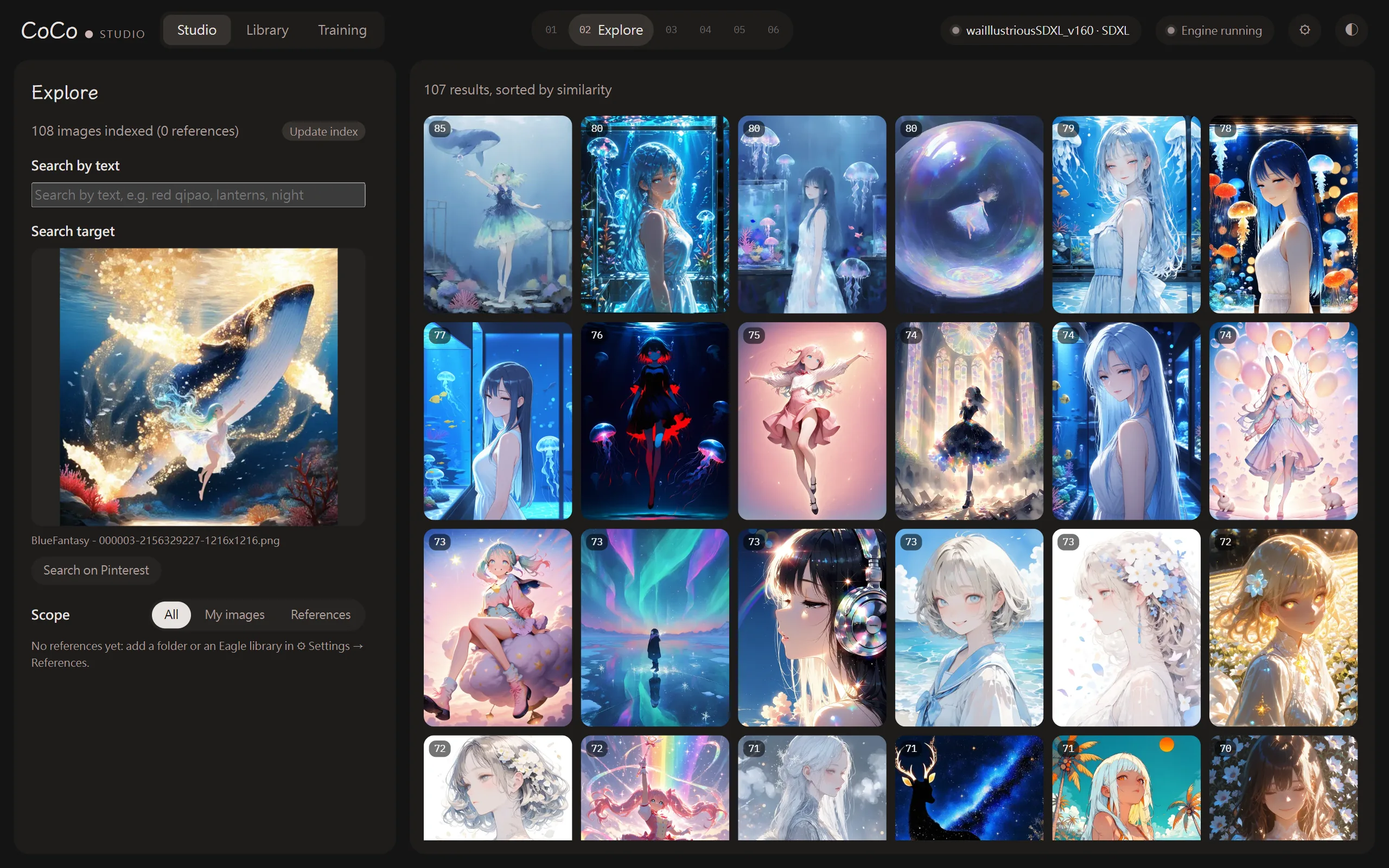
First time: download the image model
Section titled “First time: download the image model”Explore needs an image model (SigLIP2), downloaded once. Open “Explore” and you’ll see the download button. Afterwards CoCo indexes your library, which takes a while if you have lots of images.
Search with an image
Section titled “Search with an image”- Select an image in the library and press “Find similar”, or press “Find similar” while viewing an image.
- Results are ordered by similarity, closest first; the number on each image is the similarity score.
- See something even closer to what you want? Press “Search again from this image” and keep going. “Search history” keeps track of the path you’ve taken.
Search with words
Section titled “Search with words”Type in “Search by text” at the top, for example “red qipao, lanterns, night”. Chinese and English both work, and they don’t need to be tags.
Scope: my images, references
Section titled “Scope: my images, references”“Scope” can be “All”, “My images” or “References”.
References are images you’ve collected — other people’s work, inspiration — rather than ones you generated. Add them in ⚙ Settings → References:
- Regular folders
- Eagle libraries (read-only; CoCo never changes Eagle’s files)
Then press “Update index” in Explore.
Reference results can be opened in Eagle, opened at their source page, or used to “Search on Pinterest” with their main tags.