Collages
A collage combines several images into one, for portfolios or character reference sheets.
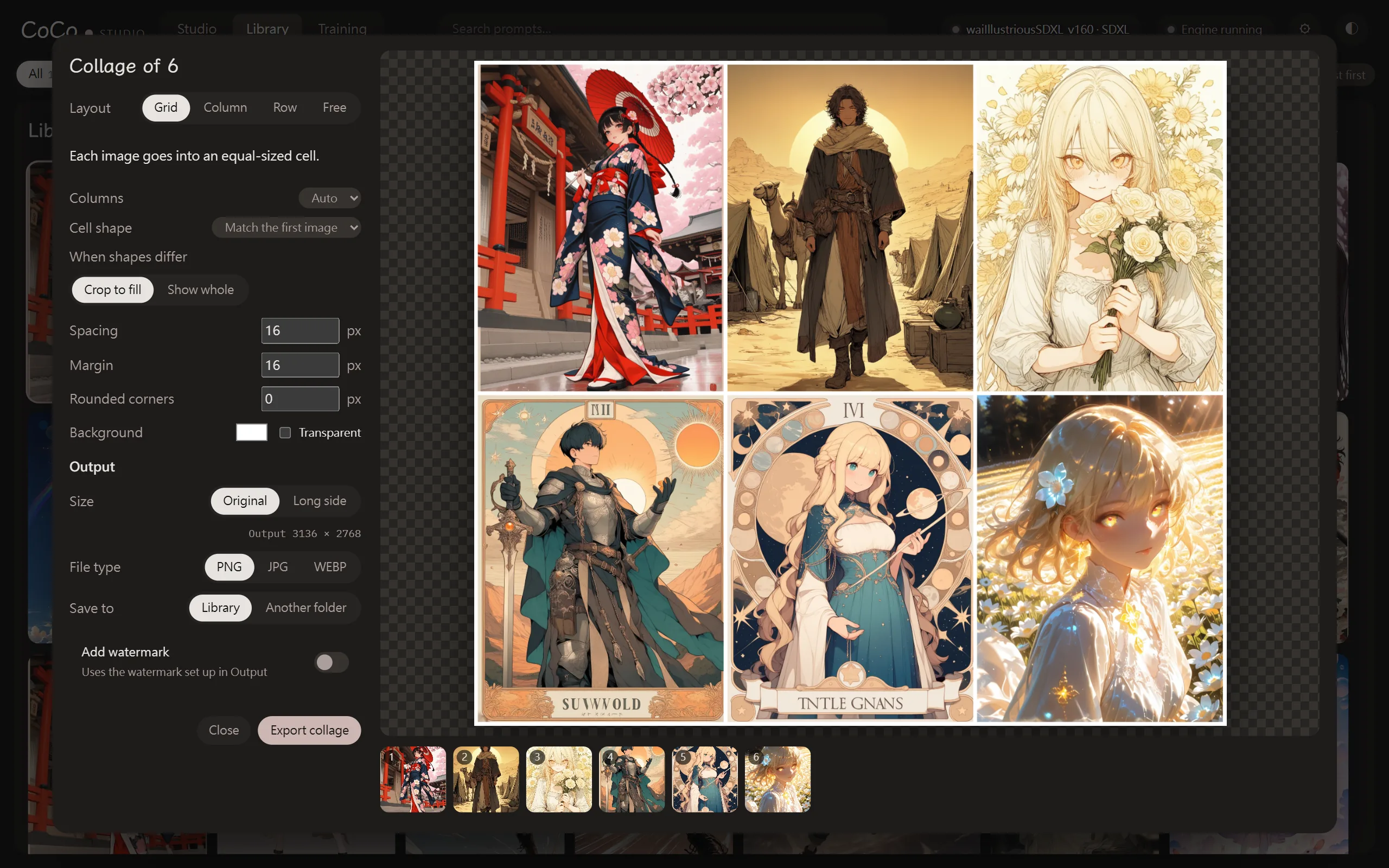
Making a collage
Section titled “Making a collage”Select two or more images in the library and press “Collage” in the action bar. Up to 40 images can be used at a time.
The thumbnails below show the order: drag them or use the ← → keys to rearrange, and press “Remove this image” to drop an image for now.
Layouts
Section titled “Layouts”| Layout | Description |
|---|---|
| Grid | Each image goes into a cell of the same size |
| Column | Stacked top to bottom, each scaled to the same width (the narrowest image’s width; never enlarged) |
| Row | Placed left to right, each scaled to the same height (the shortest image’s height; never enlarged) |
| Free | Drag images on the preview to move them, and drag the bottom-right handle to resize |
Grid settings
Section titled “Grid settings”| Item | Description |
|---|---|
| Columns | “Auto” or a number. The last row is centred |
| Cell shape | “Match the first image”, or 1:1, 2:3, 3:4, 4:3, 3:2, 16:9, 9:16 |
| When shapes differ | “Crop to fill” or “Show whole” |
Free layout settings
Section titled “Free layout settings”- Click an image on the preview to select it. Later thumbnails sit on top; “Bring to front” and “Send to back” change this.
- Set “Canvas width” and “Canvas height”; “Fit canvas to images” resizes the canvas to just contain every image, with the margin around it.
- “Rearrange” lays everything out again.
Appearance
Section titled “Appearance”| Item | Description |
|---|---|
| Spacing | Space between images |
| Margin | Space around the edge |
| Rounded corners | Corner radius of each image |
| Background | A colour, or “Transparent” (transparent areas become white when saved as JPG) |
Exporting
Section titled “Exporting”Export works like the layer editor: long side (up to 8192 pixels), file type, saving to the library or another folder, and an optional watermark. Collages don’t keep generation parameters.
Press “Export collage”. After saving to the library, “Edit this image” lets you add text. The file name format can be changed under “Collages” in ⚙ Settings → Generate → File names.