Library
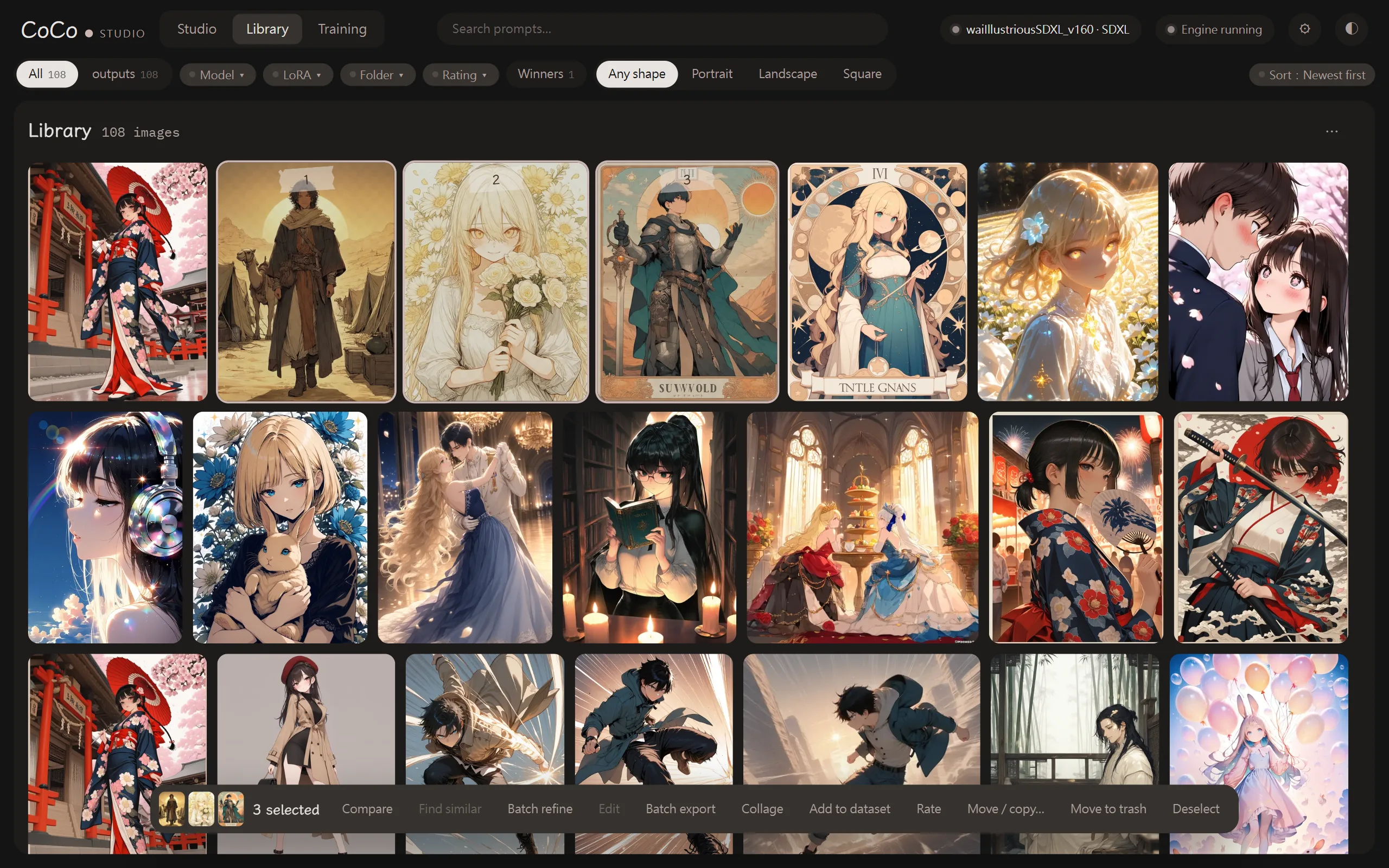
Choose “Library” at the top. Images generated by CoCo, and images from other image generators that store their generation parameters, can all be searched here together.
Which folders are scanned
Section titled “Which folders are scanned”Add folders under “Library folders” in ⚙ Settings → Library; subfolders are included. CoCo’s own output folder is always scanned.
The library is refreshed every time you start CoCo. If another tool made new images while CoCo is open, use “Rescan” in the “⋯” menu.
Search and filters
Section titled “Search and filters”- Search prompts: every word separated by spaces or commas must appear; put
-in front to exclude, e.g.rose -umbrella. - Filters: source, model, LoRA, folder, rating, orientation (portrait, landscape, square). Models and LoRAs allow several picks; with two or more LoRAs, choose “All of them” (one image used all of them) or “Any of them”.
- “Winners”: only images marked as winners in compare sets.
- Press
/to jump to the search box.
Active filters show at the top; click one to remove it, or “Clear filters” to remove all.
Selecting and actions
Section titled “Selecting and actions”Click an image to select it (click again to deselect); Ctrl+A selects every loaded image. With images selected, an action bar appears:
| Action | What it does |
|---|---|
| Rate | 1–5 stars, or clear the rating |
| Compare | Start a new compare set or add to an existing one (see Compare) |
| Find similar | Images with a similar composition or mood (see Explore) |
| Refine, Batch refine | Send to Refine |
| Edit, Batch export, Collage | Send to Output |
| Add to dataset | Copy into a training folder (originals stay put) |
| Move / copy… | Move or copy to another folder. Matching .txt caption files go along; name clashes are renamed, never overwritten |
| Show in folder | Open it in File Explorer |
| Move to trash | Moves to CoCo’s .trash folder so you can get it back (click twice to confirm) |
Viewing an image
Section titled “Viewing an image”Double-click (or select and press Enter, or the ⤢ in a corner) to view it large, with its generation settings alongside.
- “Send to Generate” brings the prompt, LoRAs, model and settings back to the generate panel and switches to the studio. Images from other programs work too; sampler names are mapped automatically.
- “Apply prompt” loads only the prompt, negative prompt and LoRAs; the model, size, seed and other settings stay as they are. With “Keep Generate’s LoRAs when applying a prompt” turned on in ⚙ Settings → “Library”, the LoRAs already in Generate are kept and this image’s LoRAs aren’t loaded.
- Click a prompt to copy it. With “Copy LoRAs with the prompt” turned on in ⚙ Settings → “Library”, the copied text also ends with the LoRAs this image used (
<lora:name:weight>). - “Move / copy…” and “Move to trash” work the same as in the action bar. After moving an image to the trash, the next image is shown.
- “Save to Eagle” saves the image and its settings to your Eagle library. It’s the only feature in CoCo that writes to Eagle.
Layout
Section titled “Layout”“⋯” → “Gallery layout” offers Justified, Masonry · packed and Masonry · in order, plus image size.
Images with no parameters
Section titled “Images with no parameters”Their metadata was stripped (usually downloaded or edited images). That’s not an error.